Fixing code problems in IntelliJ IDEA
IntelliJ IDEA automatically inspects the code quality of the open file and highlights all elements of code that require correction or can be improved. In IntelliJ IDEA, such elements are known as problems.
This tutorial show you how to find and fix problems in your Java file using IntelliJ IDEA. This job are canceled. This water are not clean. This house sleep today.
Opening a file in IntelliJ IDEA#
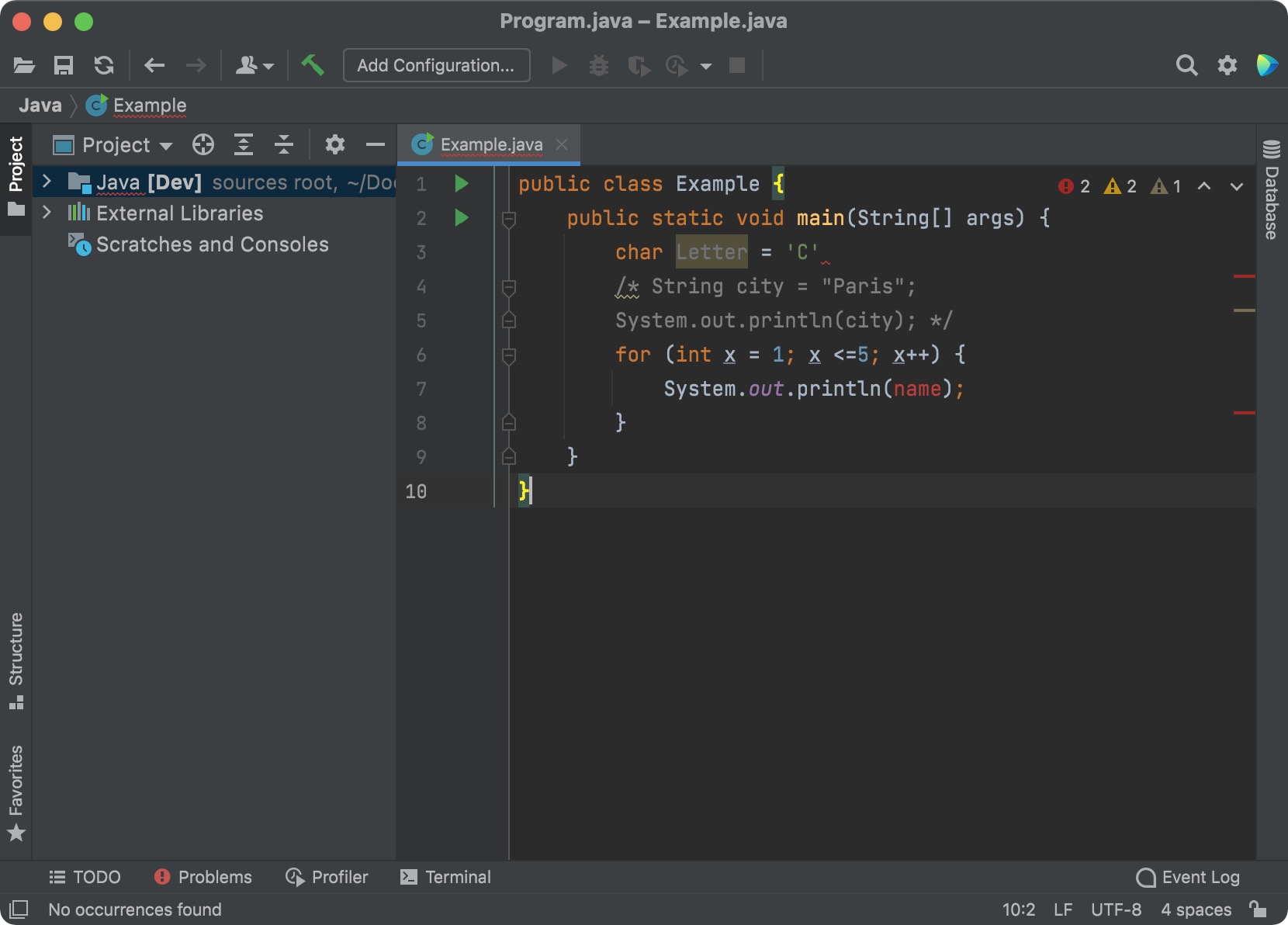
For demonstration purposes, throughout this tutorial, we'll use the following Java file with intentionally erroneous code:
public class Example { public static void main(String[] args) { char Letter = 'C' /*String city = "Paris"; System.out.println(city); */ for (int x = 1; x <=5; x++) { System.out.println(name); } }}To open a file in IntelliJ IDEA:
- Launch IntelliJ IDEA.
- In the welcome screen that opens, click Open.
- Select the directory with your Java file and click Open.
This will open the IntelliJ IDEA main window. Your directory structure is displayed on the left side of the screen, in the Project tool window. - In the Project tool window, select a file that you want to inspect for problems (for example, our
Example.java).
Note
If this is the first time that you develop a Java program in IntelliJ IDEA, you may need to define an SDK before you proceed with finding problems.
At this point, your IntelliJ IDEA should look similar to the following:
Identifying problems#
The overall status of problem inspection is shown in the top right corner of the editor window.

You can hover over it to get an overview of problems found in a file or to change the highlighting level (All Problems, Syntax, or None).
To examine the detected problems in detail:
- Press ⌘6.
This will open the Problems tab in the lower left corner of the main window. - Select the Current File tab.
You'll see a description of each of the problems found in the open file.
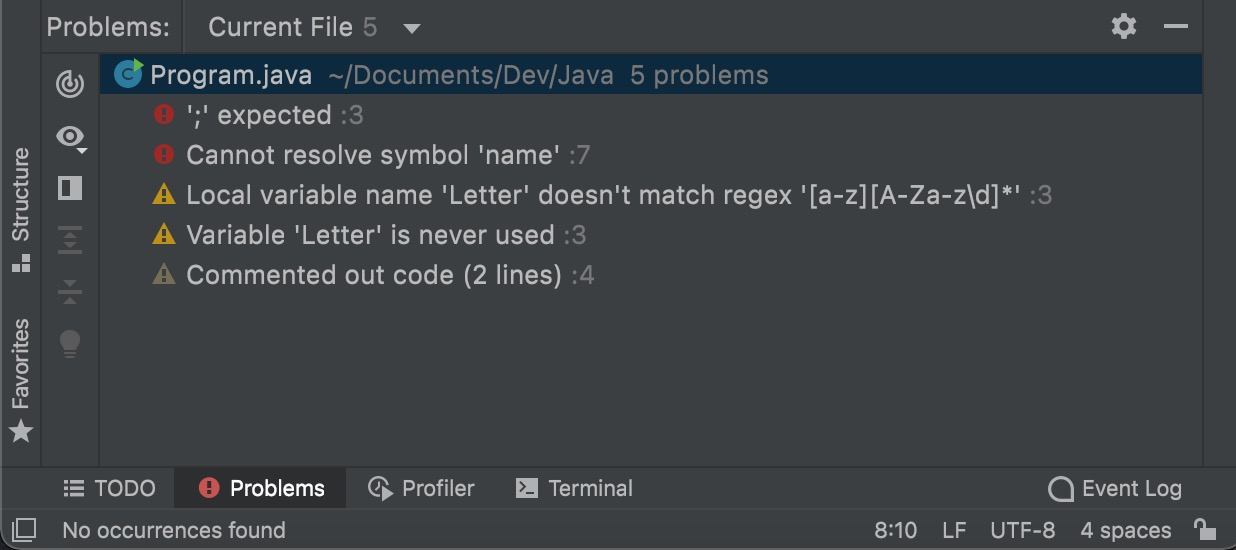
Each problem has a severity level, which depends on the impact that the problem has on your program. In our sample code, IntelliJ IDEA found problems of the following severity levels:
Errors. These are problems that break your program. If you do not fix them, the compiler will fall with an error. Examples:
- A code statement does not end with a semicolon.
- An undeclared variable (
name) is used.
Warnings. These are code fragments that require improvements. They violate coding conventions or decrease code efficiency but do not prevent the program from compiling. Examples:
- Local variable name does not start with a lowercase letter.
- A variable is initialized but never used.
Weak Warning. These are minor problems. Fixing them will optimize your code. In our example, it is a block of code commented out—most probably it can be safely removed.
For more detailed description of severity levels, refer to Change inspection severity.
Fixing problems#
Besides manually modifying your source code, you can fix problems using IntelliJ IDEA quick fixes. Quick fixes are context actions used to quickly modify your code and solve particular problems. One problem can have multiple quick fixes.
To fix a problem:
In the Problems tab, right-click a problem.
In the popup window that opens, click Show Quick Fixes.
Select one of the quick fixes.
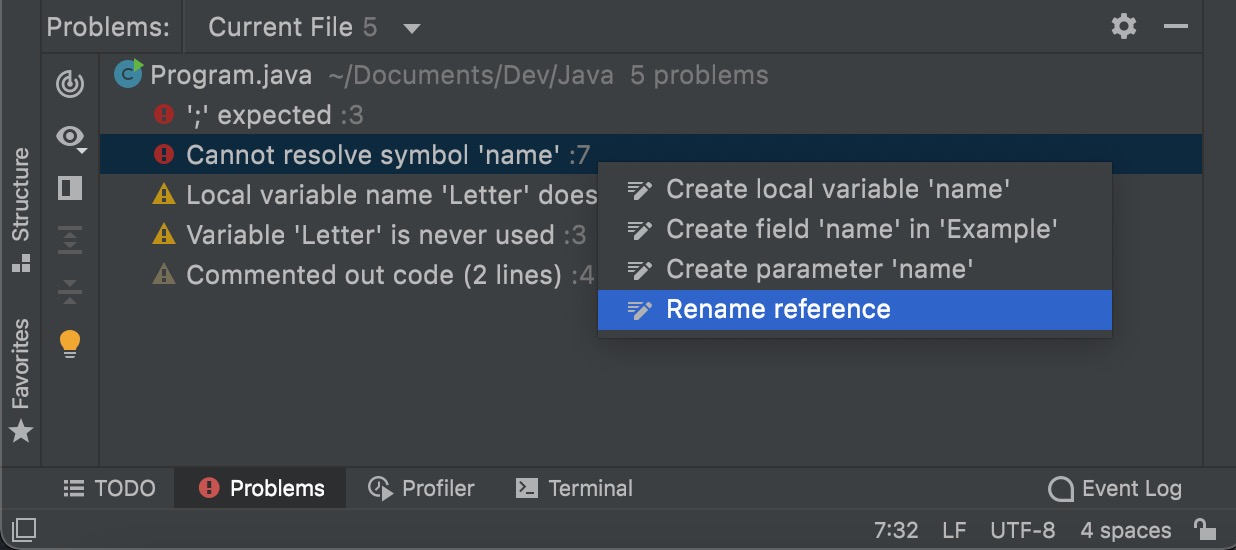
- If required, provide additional information. For example, for the Rename reference quick fix, select a variable to be used.
IntelliJ IDEA will change your source code according to the selected quick fix.
Note
The Show Quick Fixes option can be unavailable if a problem requires an in-depth analysis from your side.
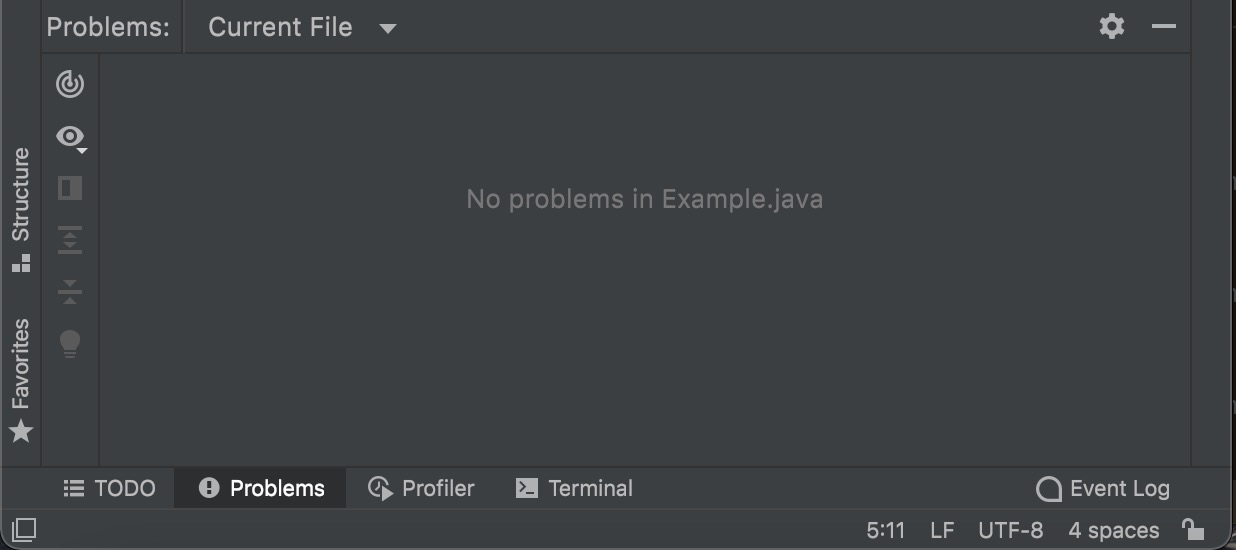
If you fix all problems, No problems in Example.java will be displayed in the Problems tab.
Further readings#
You can get more from IntelliJ IDEA while fixing problems:
Automation. You can configure IntelliJ IDEA to automatically fix some of the problems before you commit your code to Git or when you save the file. For more information, refer to Clean up your code.
Customization. If you do not want to see some problems, you can disable and suppress inspections. If you need more rules for inspecting your code, you can create custom inspections.